 MechaOBD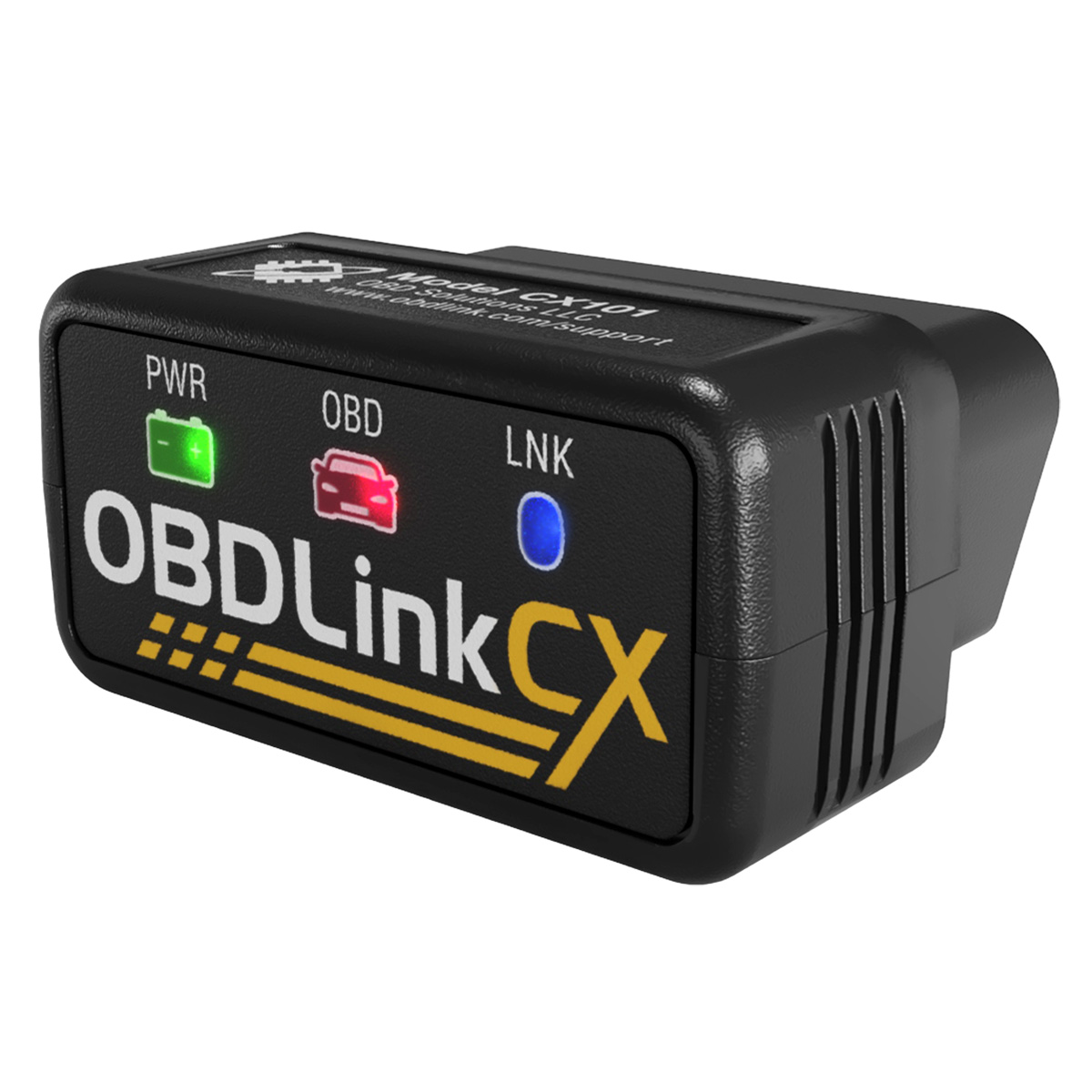
The short version: park safely, plug the OBDLink CX into your car’s OBD-II port, allow Bluetooth access, and connect to the adapter inside MechaOBD. You normally should not pair it like headphones in the iPhone Bluetooth settings. Once the car and adapter are communicating, run a Quick Scan before clearing anything.
That is the happy path. This guide also covers the details that prevent the usual connection headaches.
Before you plug anything in
You will need:
- an iPhone or iPad running iOS or iPadOS 18 or later;
- the MechaOBD app;
- an OBDLink CX adapter;
- a compatible gasoline-powered vehicle;
- a safe, well-ventilated place to park.
An OBD-II connector does not guarantee that every adapter supports the vehicle’s communication protocol. The OBDLink CX supports CAN, ISO 9141, and ISO 14230. It does not support SAE J1850. OBDLink says the CX will not work with GM, Ford, and certain FCA vehicles built before model year 2008. Check the MechaOBD compatibility guide before buying or troubleshooting for an hour.
If your vehicle needs J1850 support, see the other options in the recommended hardware guide.
Step 1: Park safely
Park on level ground, apply the parking brake, and put the transmission in Park or Neutral as your owner’s manual requires. Run the engine only outdoors, never in a garage or another enclosed space.
Do not set up the adapter, watch live data, or operate the app while driving. If the check engine light is flashing and the engine is shaking or losing power, reduce load and stop somewhere safe. A scan can wait until the vehicle is secure.
Step 2: Find the OBD-II port
Most vehicles put the 16-pin diagnostic connector below the dashboard on the driver’s side. Look near the steering column, knee panel, hood-release handle, or center console. A small trim cover may hide it.
The connector is roughly trapezoidal and keyed, so the adapter should fit in only one orientation. Do not force it. If the location is not obvious, the owner’s manual is a better source than tugging on dashboard panels.
Step 3: Plug in the OBDLink CX
With the ignition off unless the adapter or vehicle instructions say otherwise, align the connector and push the CX firmly into place. Its LEDs should show that it has power.
Keep your iPhone close to the vehicle during the first connection. OBDLink notes that the initial Bluetooth bonding window is limited after the adapter powers up. If setup has stalled for several minutes, turn the ignition off, unplug the adapter, wait briefly, plug it back in, and retry while remaining beside the car. Follow OBDLink’s current instructions for the exact light patterns and reset behavior.
Step 4: Allow Bluetooth access
Open MechaOBD. The first time the app needs Bluetooth, iOS should ask for permission. Choose Allow. MechaOBD uses Bluetooth to discover and communicate with the adapter.
If you previously denied access, open iPhone Settings, find MechaOBD, and enable Bluetooth permission. The wording and location can change between iOS releases; Apple’s current privacy settings are the authority.
You may see the CX in the iPhone’s Bluetooth area, but the connection itself is managed from MechaOBD. Do not guess at passcodes from unrelated adapters. Follow the prompt shown by iOS, MechaOBD, or OBDLink if one appears.
Step 5: Connect inside MechaOBD
In MechaOBD, start the connection flow and select the OBDLink CX when it appears. Give the app enough time to discover the adapter and establish communication with the vehicle.
There are two separate links involved:
- iPhone to adapter: Bluetooth Low Energy connects MechaOBD to the CX.
- Adapter to vehicle: The CX communicates with the vehicle through a supported OBD-II protocol.
This distinction explains a common problem: the iPhone can find the adapter even when the adapter cannot communicate with the car. When that happens, check the ignition state and vehicle protocol before blaming Bluetooth.
Close other diagnostic apps that could already be using the adapter. Most adapters support one active app connection at a time.
Step 6: Use the ignition state the app requests
MechaOBD may ask for one of two states:
- Ignition on, engine off: the dashboard is powered, but the engine is not running.
- Engine running: required for live operating data and parts of a Guided Health Check.
Follow the prompt for the current step. If the ignition is off when the app expects powered control modules, the adapter may appear healthy while the vehicle produces no useful response.
When the engine must run, stay outdoors and keep clear of belts, fans, and hot components.
Step 7: Run a Quick Scan first
Once connected, start with a Quick Scan. Save the results before clearing anything. Record:
- every stored, pending, and permanent code;
- the exact five-character code, not only its description;
- whether the check engine light is steady or flashing;
- symptoms and when they occur;
- freeze-frame information and available live readings;
- recent repairs, a dead battery, or other changes.
A code identifies a monitored condition, not necessarily a failed part. P0420 does not automatically mean “buy a catalytic converter,” and P0300 does not automatically mean “buy ignition coils.” The evidence around the code is where diagnosis begins.
If you want a more structured capture, MechaOBD’s Guided Health Check walks through ten steps. An optional paid Diagnostic Report can then organize the available vehicle information, codes, and captured readings into likely causes, supporting evidence, limitations, and practical next checks.
What the OBDLink CX lights can tell you
The CX uses status lights to show power and communication activity. They are useful for separating three questions:
- Is the adapter receiving power?
- Is Bluetooth activity occurring?
- Is the vehicle responding?
Exact colors and flash patterns can change with state and firmware, so use OBDLink’s quick-start guide rather than memorizing a color chart from a forum post. A powered adapter with no vehicle response usually points toward ignition state, connector seating, or protocol compatibility. An unpowered adapter points toward the port, adapter, or vehicle power supply.
If the OBDLink CX does not appear
Work through these checks in order:
- Confirm the adapter is fully seated and showing power.
- Keep the iPhone within a few feet of the adapter.
- Confirm Bluetooth is enabled and MechaOBD has Bluetooth permission.
- Close OBDLink, diagnostic, and vehicle apps that might already hold the connection.
- Turn the ignition off and power-cycle the adapter according to OBDLink’s instructions.
- Reopen MechaOBD and retry promptly after the CX powers up.
- Check for current OBDLink firmware and support instructions.
Avoid repeatedly changing unrelated settings. A slow, ordered check makes it much easier to identify which link is actually failing.
If the adapter appears but the car does not respond
First verify that the ignition is in the requested state. Next, check vehicle compatibility. The OBDLink CX does not support J1850, so it is the wrong adapter for some older GM, Ford, and FCA vehicles even though Bluetooth works perfectly.
Also inspect the diagnostic connector for obvious damage or looseness. If other dashboard accessories have stopped working, check the vehicle manual because the OBD port may share a fuse with another circuit. Do not probe pins or replace fuses without vehicle-specific instructions.
If the connection keeps dropping
Stay near the vehicle and close competing apps. Confirm the adapter remains firmly seated and powered. Temporarily move other phones or tablets that have used the CX away from the car or disable their Bluetooth. Check the OBDLink support site for firmware and reset guidance.
If the drop happens only when the engine starts, note that detail. Voltage changes, a loose connector, or a marginal vehicle power circuit can produce a different problem than an app that disconnects at random.
What to do after a successful connection
Treat the first scan as evidence collection, not a reset button. Clearing codes can erase freeze-frame information, turn off the light temporarily, and reset emissions readiness monitors. It does not repair the cause.
A useful next step sounds like this: “The car stored P0302 after warming up, the light flashed under load, and the scan captured these readings.” That gives you or a mechanic something testable. “The scanner says cylinder two, so I bought a coil” is still a guess.
Keep the adapter unplugged when you are finished unless its manufacturer and your vehicle documentation say it is appropriate to leave installed. OBDLink designs the CX for low-power operation, but accessories should never interfere with driving controls or remain in a location where they can be kicked.
Frequently asked questions
Do I pair OBDLink CX in iPhone Bluetooth settings?
Normally, connect through MechaOBD. BLE diagnostic adapters are discovered and managed by the app. Follow an iOS or OBDLink pairing prompt if one appears, but do not invent a generic passcode.
Why can my iPhone see the CX but MechaOBD cannot read the car?
Bluetooth and vehicle communication are separate links. Check the requested ignition state, close other apps using the adapter, and confirm that the CX supports the vehicle’s OBD-II protocol.
Does OBDLink CX work with every OBD-II car?
No. It does not support SAE J1850. OBDLink specifically documents exceptions for GM, Ford, and certain FCA vehicles built before model year 2008.
Can I leave OBDLink CX plugged in?
OBDLink describes the CX as having low-power sleep behavior, but the safest choice depends on the vehicle, parking duration, adapter position, and manufacturer instructions. Remove it if it obstructs your legs or controls, or if the vehicle will sit unused for an extended period.
Should I clear codes after connecting?
Not before saving them and their context. Clearing codes erases useful evidence and resets readiness monitors. Diagnose and repair the cause, then follow the manufacturer’s verification procedure.
Does MechaOBD need an account?
No account is required. You can also use Demo Mode before connecting hardware. A compatible adapter is required to scan your own vehicle.