 MechaOBD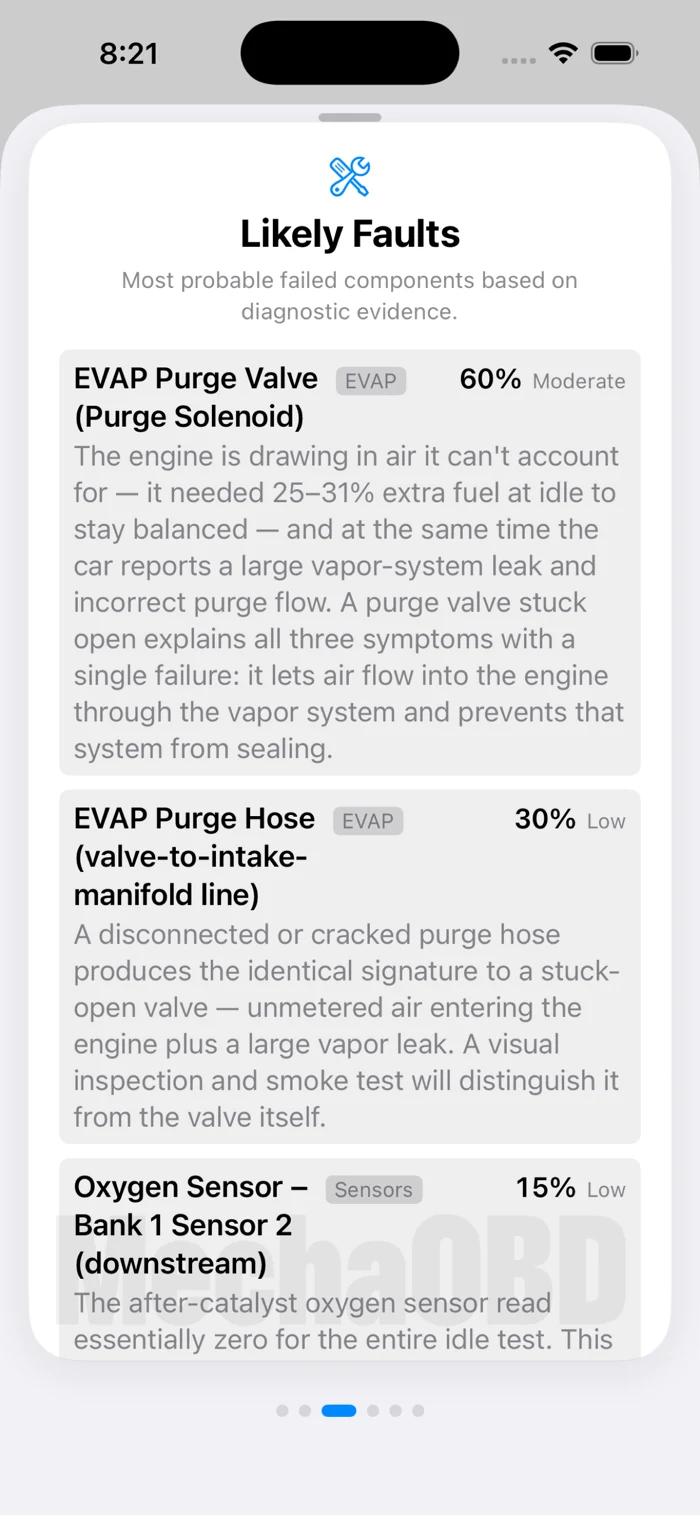
You can read many check engine light codes with an iPhone by plugging a compatible Bluetooth Low Energy OBD-II adapter into the car’s diagnostic port and connecting through an OBD-II app such as MechaOBD. Park safely, connect the adapter, let the app identify the vehicle, and run a scan. Save every code and its status before clearing or disconnecting anything.
The scan itself is easy. The useful part is understanding what the car actually told you—and what it did not.
What you need
For MechaOBD, the basic setup is:
- an iPhone or iPad running iOS or iPadOS 18 or later;
- the MechaOBD app;
- a compatible Bluetooth Low Energy OBD-II adapter;
- a compatible gasoline-powered vehicle;
- a safe, well-ventilated place to park;
- internet access if you choose to identify the vehicle online or request an AI Diagnostic Report.
An account is not required. Most basic diagnostic functions work locally, while vehicle identification and requested Diagnostic Reports use online services. Available codes and readings depend on the vehicle and adapter.
Why the adapter matters on an iPhone
The small device in the OBD-II port is the bridge between the car and the app. It speaks the vehicle’s diagnostic protocol on one side and sends data to the iPhone on the other.
Do not assume every adapter labeled “Bluetooth” will work with every iPhone app. Bluetooth Classic and Bluetooth Low Energy are different connection types. MechaOBD requires a compatible BLE adapter.
MechaOBD’s currently recommended, tested options are:
- OBDLink CX: the high-performance choice used during MechaOBD development, with Bluetooth 5.1 BLE, low-power sleep behavior, and overvoltage protection. It does not support the older J1850 protocol used by some older vehicles.
- Veepeak OBDCheck BLE: the lower-cost choice for everyday or occasional diagnostics. It supports all five standard OBD-II protocols, including J1850.
Adapter support and vehicle protocol support are separate questions. Check the MechaOBD compatibility guidance and recommended hardware before buying.
Step 1: Park safely
Park on level ground, apply the parking brake, and put the transmission in Park or Neutral as the owner’s manual requires. Work outdoors. Never run an engine in a garage or enclosed area, even with the door open.
Do not set up, scan, or watch live data while driving. If a procedure requires a change in engine speed, use a helper or follow a guided process only when the vehicle is securely parked and the surroundings are safe.
If the check engine light is flashing and the engine is shaking, prioritize safety. Reduce engine load, stop when safe, and consider a tow. Read Flashing vs. Solid Check Engine Light before continuing.
Step 2: Find the OBD-II port
The standardized diagnostic connector is normally inside the passenger compartment, within reach of the driver’s position. In many cars it is below the dashboard near the steering column, kick panel, hood-release area, or center console.
It is a roughly trapezoidal 16-pin connector. It may face downward, forward, or sideways, and a trim cover may hide it. The owner’s manual can identify the exact location.
Do not force the adapter. The connector has a keyed shape and should fit in only one orientation.
Step 3: Plug in the adapter
With the ignition off unless the adapter instructions say otherwise, align the connector and press the adapter fully into place. The adapter should power from the diagnostic port and show its normal status light.
Then follow the adapter’s and app’s connection instructions. BLE accessories are often discovered and connected inside the app rather than paired like headphones in the iPhone Settings screen.
For an OBDLink CX, the manufacturer documents a BLE connection flow in which the app scans, connects, discovers services, and prompts pairing as needed. Follow current product instructions rather than experimenting with generic passcodes from unrelated adapters.
Step 4: Open MechaOBD and connect
Open the app while staying near the vehicle. Select the compatible adapter and allow the connection to complete. Depending on the vehicle, you may be prompted to switch the ignition on or start the engine.
Keep the distinction clear:
- Ignition on, engine off powers the control modules without running the engine.
- Engine running is required for live operating data and parts of a Guided Health Check.
Follow the app’s prompt for the current step. Guessing at ignition state is a surprisingly efficient way to create confusing connection errors.
Step 5: Run a Quick Scan
MechaOBD’s Quick Scan can read available standard OBD-II trouble codes in three categories:
Stored codes
These are faults the vehicle has recorded after the relevant confirmation criteria were met. A stored code gives you a defined system or condition to investigate.
Pending codes
A pending code is an observed condition that may not yet have repeated enough to become confirmed. It can appear before the check engine light turns on. A pending code is evidence, not a verdict; note it and see whether the condition repeats.
Permanent codes
A permanent code is designed to remain until the vehicle’s own monitoring verifies that the problem has been resolved. It may remain after the dashboard light turns off or after a repair. An ordinary clear request should not erase it, and its presence alone does not prove the fault is currently active.
Save all three categories. The status can be as important as the five-character code.
Step 6: Capture the context
Imagine two cars reporting P0171, “System Too Lean, Bank 1.” One also reports EVAP purge-flow and large-leak codes with high fuel trims at warm idle. The other reports an airflow-sensor circuit fault and behaves differently under load. The shared code does not make them the same diagnosis.
Useful context can include:
- year, make, model, and engine;
- mileage;
- stored, pending, and permanent codes;
- whether the light is steady or flashing;
- engine temperature and operating state;
- symptoms and recent repairs;
- freeze-frame information;
- relevant live readings;
- whether a code returns under the same conditions.
This is why “read code, buy named part” is a poor workflow. The code describes what a monitor saw. The surrounding evidence helps explain why.
MechaOBD’s Guided Health Check walks through a ten-step capture. Manual Capture is available when you need to record behavior more directly. Run the engine only outdoors and stay near the vehicle.
Step 7: Understand the result
There are three reasonable levels of interpretation:
Read the code description
This is the fastest starting point. It tells you the system or condition associated with the DTC. It does not confirm a failed component.
Use service information and test the system
Vehicle-specific service information, technical service bulletins, wiring diagrams, pressure or vacuum tests, visual inspection, and measured data can confirm or eliminate causes. This is the diagnostic work.
Use a MechaOBD Diagnostic Report
After a completed Health Check, you can choose an optional paid Diagnostic Report. It uses the available vehicle information, codes, and captured readings to explain likely causes, the evidence behind them, limitations, and suggested next steps. Reports are saved in the app and can be exported as PDFs to share with a mechanic.
Each report is a separate in-app purchase; there is no subscription. You can inspect a sample report before buying one.
MechaOBD is a diagnostic aid. A report cannot physically inspect the vehicle or guarantee a cause. Its best use is turning raw data into a more focused investigation and a better conversation.
Should you clear the code?
Not yet.
First save:
- every code and status;
- freeze-frame data if available;
- relevant live readings;
- the conditions and symptoms;
- a dated screenshot or exported report.
Clearing diagnostic information can turn off the light temporarily, erase useful evidence, and reset emissions readiness monitors to “not ready.” It does not fix the cause. If an inspection is coming, clearing codes can create a new problem: the car may be rejected or fail because its monitors have not rerun.
After the cause is tested and repaired, use the vehicle manufacturer’s verification procedure and let the necessary monitors complete.
What an iPhone OBD-II scanner can—and cannot—do
It can often:
- read generic engine and emissions-related codes;
- display code status;
- show standard live data supported by the vehicle;
- display emissions readiness information;
- help capture a repeatable pattern;
- preserve information to discuss with a mechanic.
It cannot automatically:
- identify every failed part from a code;
- inspect hoses, connectors, plugs, compression, or exhaust leaks;
- guarantee access to ABS, airbag, body, or manufacturer-specific modules;
- make an unsafe car safe to drive;
- replace correct service information and physical testing.
Coverage varies widely. OBD-II standardization is helpful, not magical.
Connection troubleshooting
The adapter does not appear in the app
Confirm that it is firmly plugged in and powered, Bluetooth is enabled, and the adapter uses BLE. Close other diagnostic apps that may already hold the connection. Power-cycle the adapter according to its instructions and stay close to the vehicle.
The iPhone connects, but the app cannot communicate with the car
Check the requested ignition state. Confirm that the adapter supports the vehicle’s OBD-II protocol. Some older vehicles use J1850, which the OBDLink CX does not support; the Veepeak OBDCheck BLE does.
The scan shows fewer readings than expected
Vehicles expose different sets of standard data. A parameter that appears on one car may be unavailable on another. Manufacturer-specific modules and enhanced data may require different hardware, software, or access.
The connection drops
Stay near the vehicle, close competing apps, and confirm the adapter has stable power. Check the adapter manufacturer’s firmware and troubleshooting guidance. Cheap generic adapters vary widely in implementation and reliability.
The best way to use the result
Bring evidence, not a conclusion.
“The car has P0300, so it needs coils” is a guess.
“The car developed a flashing light under load, stored P0300 and P0302, showed these conditions in the capture, and began after this recent repair” is a useful diagnostic starting point.
That is the real value of putting a scanner in your pocket: not pretending you became a technician in three minutes, but making the next decision with more information than a warning light provides.
Download MechaOBD from the App Store to explore Demo Mode now. To scan your car, use a compatible BLE adapter and confirm vehicle support first.
Frequently asked questions
Can an iPhone read check engine codes without an adapter?
No. The iPhone needs hardware that connects to the car’s OBD-II diagnostic port and communicates with the app. Demo Mode can show how MechaOBD works without connecting to a car.
Does any Bluetooth OBD-II adapter work with an iPhone?
No. The adapter, app, iPhone connection type, and vehicle protocol must be compatible. MechaOBD requires a compatible Bluetooth Low Energy adapter.
Where is the OBD-II port?
It is usually beneath the driver’s side of the dashboard, but the exact location varies. Look for a 16-pin trapezoidal connector or check the owner’s manual.
Can an iPhone OBD-II app diagnose ABS or airbag lights?
Not through generic engine OBD-II data alone. Access to ABS, airbag, body, and manufacturer-specific modules varies by vehicle, adapter, and software. Confirm coverage before assuming a tool can read a particular system.
Is MechaOBD free?
The app is free to download and can scan codes, show available data, and run Health Checks with compatible hardware. Diagnostic Reports are optional, individually purchased in the app. The OBD-II adapter is sold separately.